PDFluffer
A PDF reader and editor for Windows with no ads, no account and no nag screens. Fill forms, sign, and fix up scans.
Runs on Windows
Open source under the MIT licence. Fork it, build it, change it.
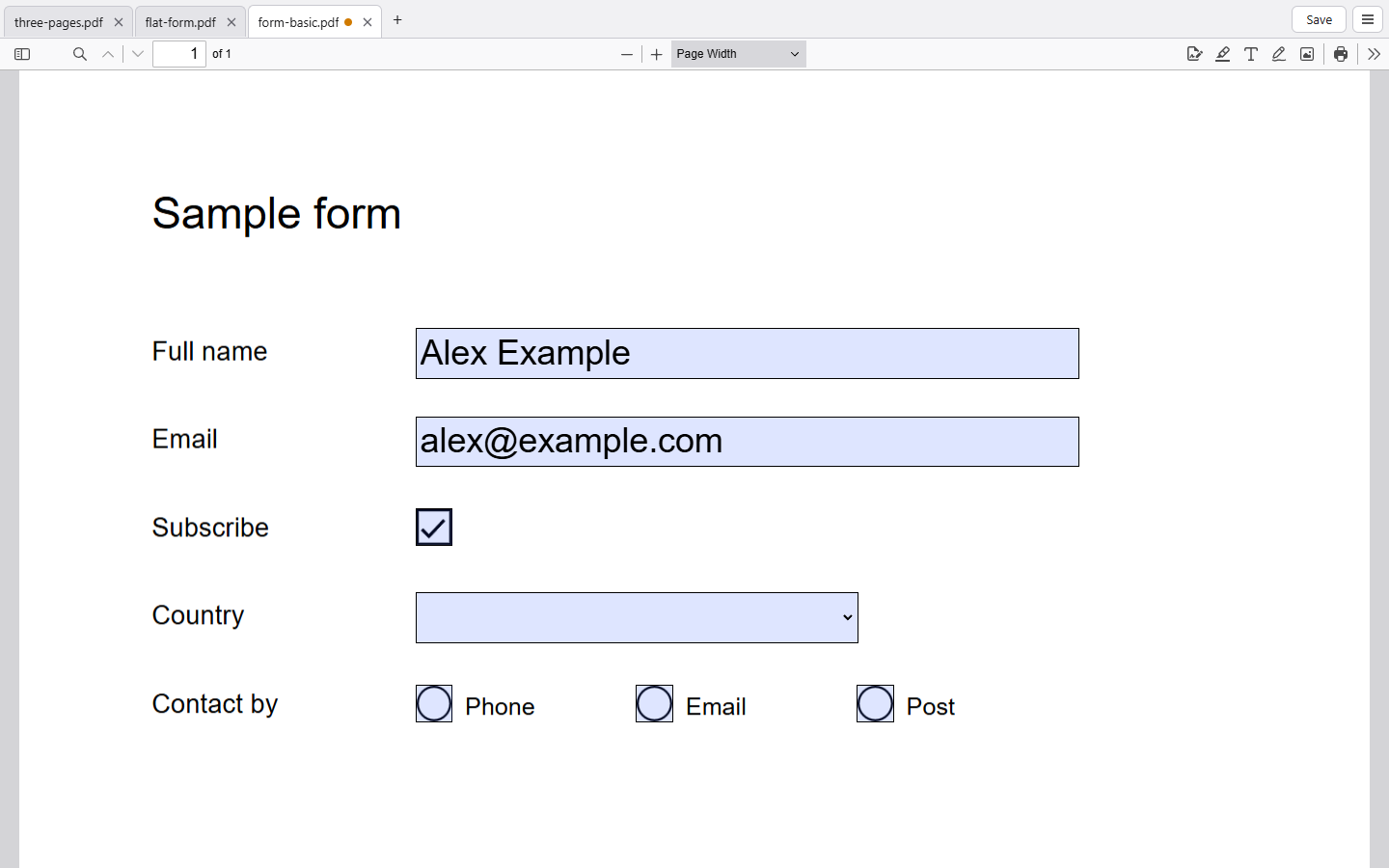
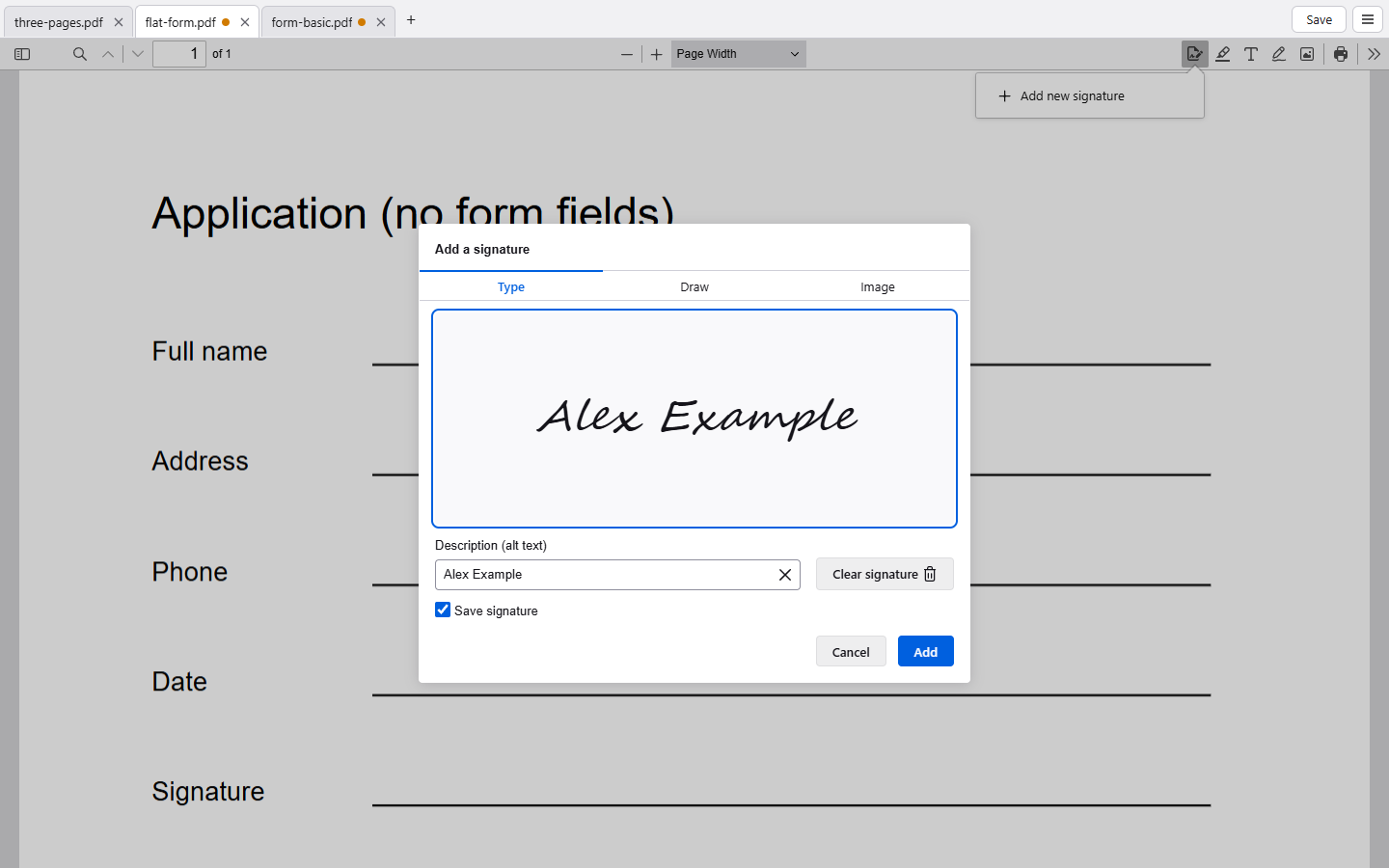
I built PDFluffer because every PDF app I tried wanted me to pay for the basics, and reminded me of that on every page. It does the things most people need from a PDF app and nothing else: read several files in tabs, search and copy text, fill in forms, add text anywhere on a flat form, and sign. Saved signatures come back next time, and you can rename them.
It saves straight back to the file, asks once before the first overwrite and never again, and reopens your tabs where you left them. A digitally signed PDF gets a badge, and a warning before any change that would break the signature.
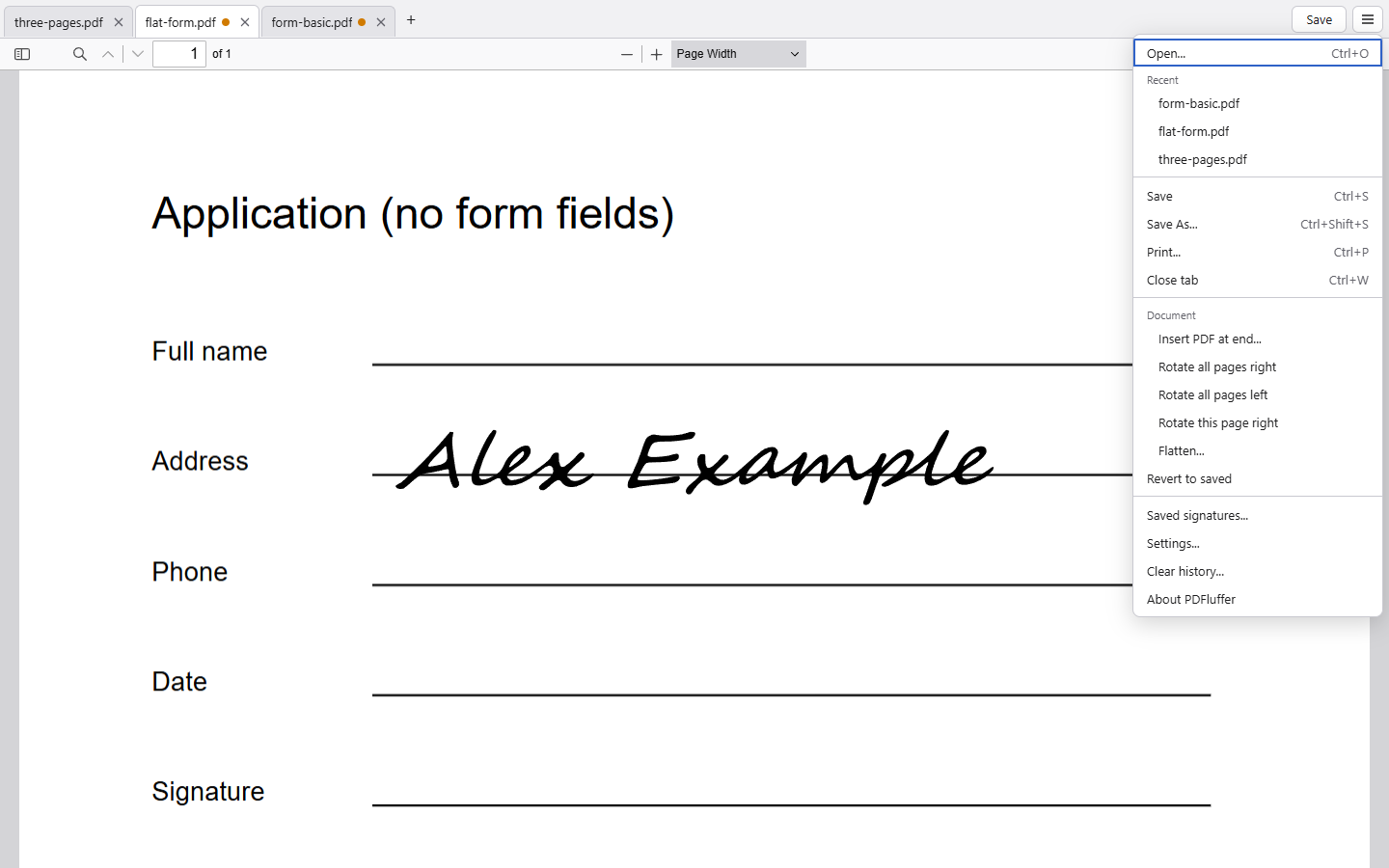
The Document menu adds the tools the paid apps charge for: insert another PDF, rotate pages, and flatten a form so the answers and signatures become a permanent part of the page before you send it. A scanned PDF, which is only a picture, can be made searchable with the OCR built into Windows, so you can select and copy its text.
Under the skin it is the same PDF engine as Firefox, inside a small Windows app. It never touches the network: no telemetry, no update checks, nothing uploaded.
The installer is signed with a code signing certificate, so Windows names the publisher as Open Source Developer Nicholas Walker. Windows SmartScreen may still warn about a new release for a while, until it builds up a reputation.